 RecVault
Read voice notes when you can't listen
Voice messages are quick to send and slow to receive. You need headphones, or a quiet room, or the patience to hold the phone to your ear for several minutes. Text has none of those problems: you can skim it, reread the important part and reply straight away.
RecVault shows up in Android's share menu, so any audio message can be sent to it from WhatsApp, Telegram, Signal or another chat app. The message is saved to your library and transcribed when you ask.
Find that voice note again later
Once a voice message is transcribed, it becomes searchable. If someone gave you an address, a price or a time in a voice note last month, type a word from it into RecVault's search and the recording comes up with the match highlighted. Scrolling back through a chat to replay ten voice notes is no longer the only way.
Works in the language the message was sent in
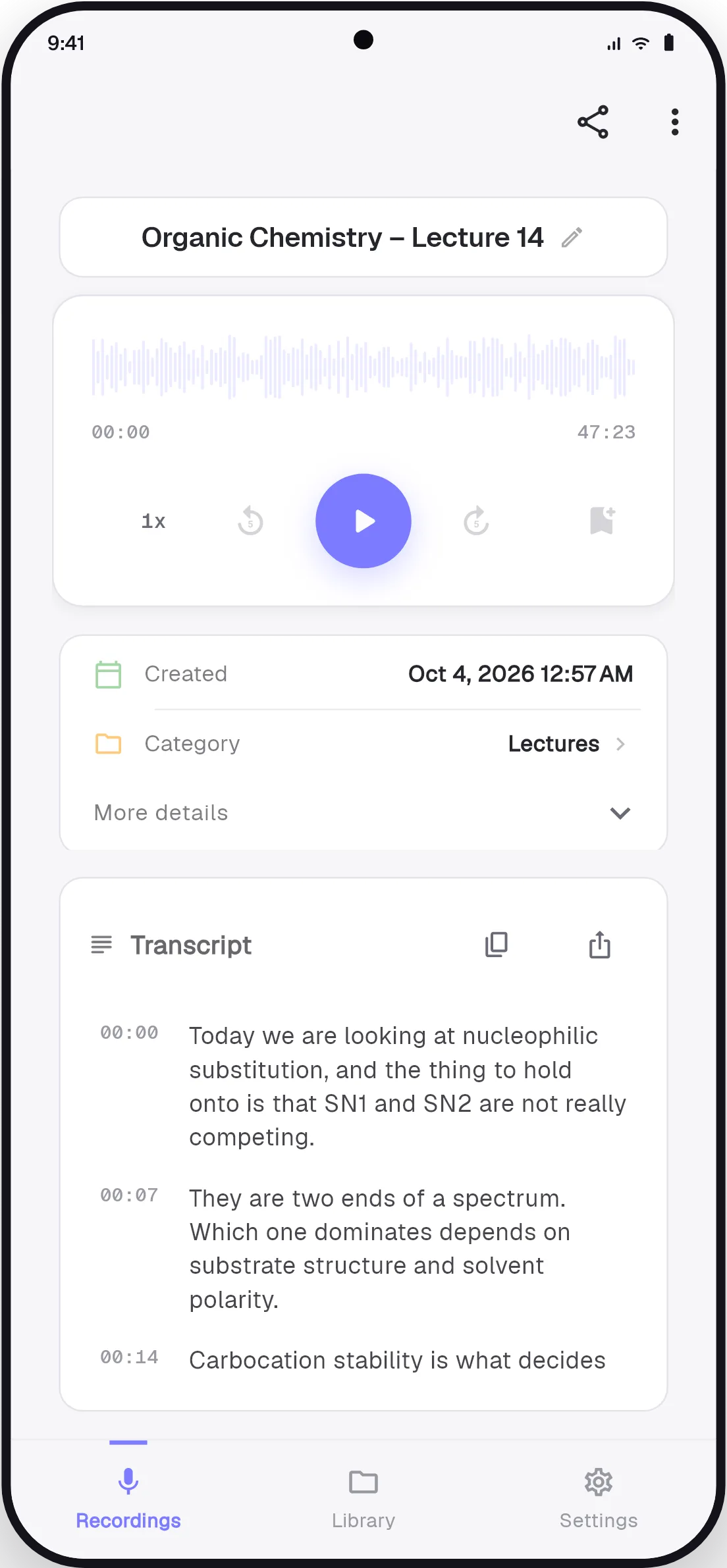
Transcription covers more than 90 languages and detects the spoken language on its own, so a message in Arabic, Hindi, Spanish or Portuguese is transcribed in that language. Each line carries a timestamp. If a word looks wrong, tap the line and hear exactly that part.
How to transcribe a WhatsApp voice message
- Long-press the voice message
In the chat, press and hold the voice note until it is selected.
- Tap Share and choose RecVault
Open the share option from the menu at the top of the chat, then pick RecVault from the list of apps.
- Tap Transcribe
The message opens in RecVault. Tap Transcribe and the text appears in about a minute.
- Read, copy or search it
Read the transcript, copy it into a reply, or find it later by searching for any word in it.
Good to know
- Each transcription covers up to 10 minutes of audio, which is longer than almost any voice note.
- The original chat is not changed. RecVault works on a copy of the audio.
- Ask before transcribing something sensitive. The audio of that one message is sent to the transcription service and is not kept afterwards.